
Place released parts in KiCad
Prism’s Remote Symbol Provider lets you search the released parts in Library Manager from KiCad’s Remote Symbols panel and place them straight into a schematic, with their symbol, footprint and 3D model.
Before you start
Section titled “Before you start”- You need a KiCad version with the Remote Symbols panel (KiCad 10).
- Your computer must reach the Prism server over HTTPS, with a certificate your operating system trusts. If Prism works in your browser only after you click past a certificate warning, KiCad will not connect. Your administrator sets this up as described in HTTPS.
- Any Prism account can use the provider, whatever its role.
- At least one part must be released in Library Manager.
Connect KiCad to Prism
Section titled “Connect KiCad to Prism”- In KiCad’s schematic editor, open the Remote Symbol settings and add your
Prism address as a provider, for example
https://prism.example.com. KiCad finds the rest of the provider details on its own. - Open the Remote Symbols panel. The Prism panel loads inside it.
- Select Sign In. Your system browser opens Prism’s normal sign-in page. If you are already signed in to Prism in that browser, it continues straight away.
- Return to KiCad. The panel shows the parts catalog.
Your administrator can also give you a datasource package to install from KiCad’s Plugin and Content Manager. After installing it, add the Prism address in the Remote Symbol settings if KiCad has not added it for you.
The sign-in only lets KiCad read released parts. It cannot change projects or Library Manager.
Find and place a part
Section titled “Find and place a part”- Browse by category, or search by value, manufacturer part number, manufacturer or description. Results page through the whole catalog.
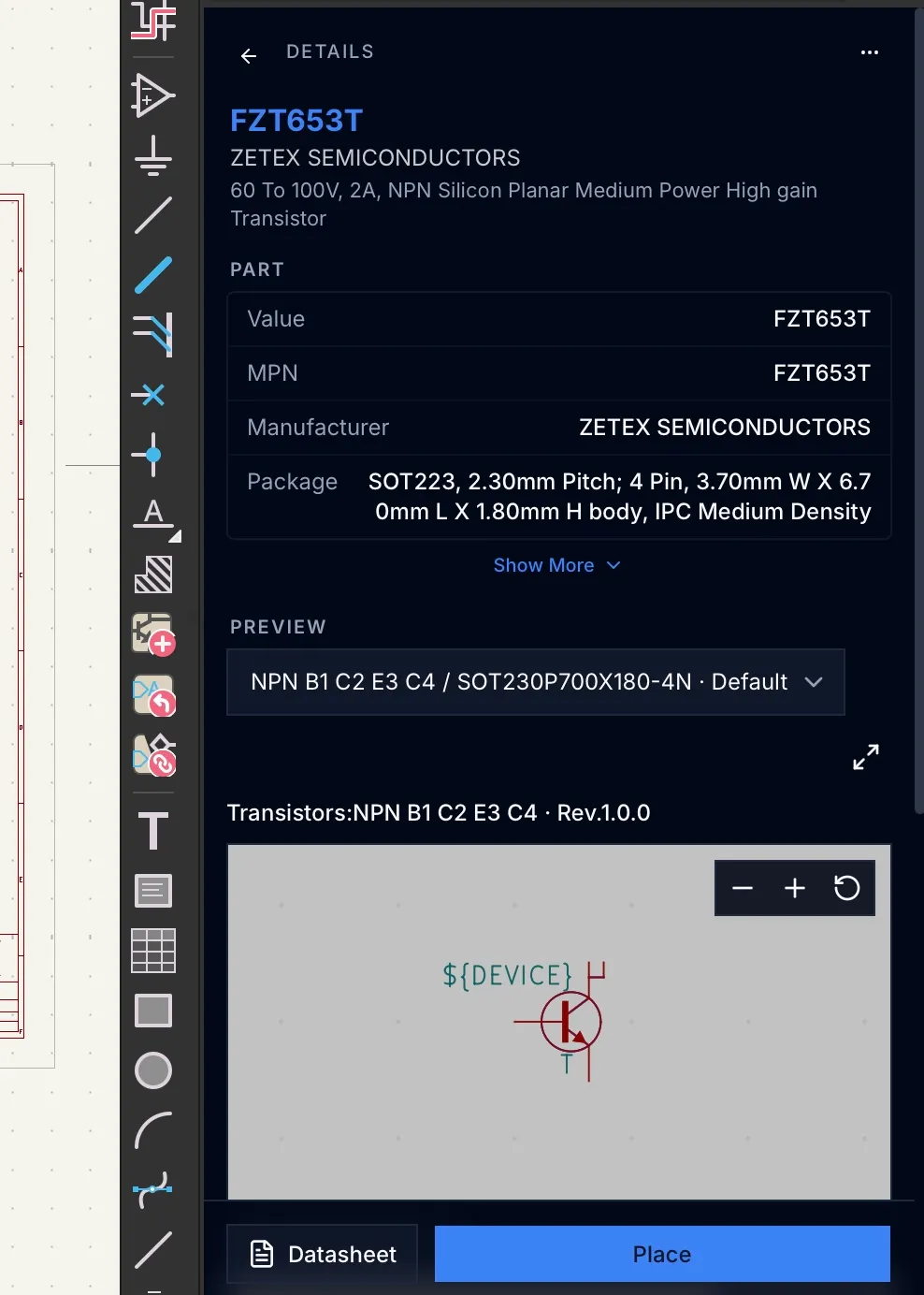
- Select a part to open its details: value, MPN, manufacturer, package and stock under Availability.
- Under Preview, choose a representation if the part has more than one. The symbol and footprint previews change together.
- If the part has more than one released revision, choose one in the revision selector next to it. It defaults to the latest release.
- Select Place to hand the part to KiCad for placement.
KiCad writes the part’s symbol and footprint into a project-local library.
By default the library prefix is remote and the files go to
${KIPRJMOD}/RemoteLibrary. If your KiCad uses different values, your
administrator must change Prism’s settings to match
(Configuration).
If Place fails, check the message in the panel log before trying again; Prism sends each placement only once. More actions → Inline Fallback places the same part by a second route if the normal one fails.
If your session expires, the panel asks you to sign in again.
What travels with a placed part
Section titled “What travels with a placed part”- Which release it came from. Each placed symbol carries two hidden
fields,
Prism_ComponentandPrism_Revision, that record the library part and the exact released revision. KiCad keeps them through Update Symbols from Library (which takes the stamp of the revision now in your project library) and copies them to the footprint with Update PCB from Schematic. You can’t use these two names for your own library fields. - 3D models. The footprint carries its 3D model embedded in it, and KiCad
moves the model into the board file when you save. The commit then pins the
exact model, and a fresh clone needs no
RemoteLibraryfolder. Models too large to embed, or that don’t compress, keep a path to<destination>/<prefix>_3d/instead and are not pinned.
A part whose files together exceed KiCad’s 16 MiB download limit does not place.
See which library parts a project uses
Section titled “See which library parts a project uses”In a project in Prism, select the Library parts button in the project header. It lists the library parts the project’s schematics use, which revision each one is, and which have a newer release. Prism rescans after every sync; designers can select Scan again.
Parts placed before Prism started stamping symbols are matched by their library name or manufacturer part number, and are marked as inferred. Prism never writes anything into your project to do this.
Why a part is missing
Section titled “Why a part is missing”The panel shows only released parts. A part does not appear when it is:
- still being authored or waiting for QA;
- archived;
- missing its symbol or footprint;
- an earlier released revision, unless you choose it in the revision selector.
An empty catalog usually means nothing is released yet, not that sign-in failed.
Troubleshooting
Section titled “Troubleshooting”| Symptom | What to check |
|---|---|
| KiCad cannot add the provider | The address, DNS or VPN, and whether your computer trusts the server’s certificate. |
| Sign-in keeps repeating | Ask your administrator to check the server’s public address and sign-in callback. |
| The catalog is empty | Whether any parts are released and complete in Library Manager. |
| A preview is missing | Select Retry. If it persists, the preview may not have been generated yet. |
| Place shows Unavailable | The part’s release state and whether it has both a symbol and a footprint. |
| A 3D model path is wrong | The model was too large to embed; check the library prefix and destination settings with your administrator. |
| It works in the browser but not in KiCad | Certificate trust in the operating system, or a proxy that intercepts HTTPS. |
Server-side checks are in Operations.
Using a database library instead
Section titled “Using a database library instead”The Remote Symbol Provider and the KiCad database library export are separate. If your team uses a KiCad database library instead, see Export a KiCad database library.