
Review with comments
Leave review comments directly on a schematic or board: on a part, a net, a point or an area. Each comment starts a thread that others reply to, react to and resolve, and everyone viewing the project sees changes as they happen.
Who can do what
Section titled “Who can do what”| Action | Who |
|---|---|
| Read comments | Everyone with access to the project |
| Start a thread, reply, react | Every signed-in role: viewer, QA, designer and admin |
| Edit or delete a message | Its author, or an admin |
| Resolve or reopen a thread | Designers and admins |
| Publish a thread as an issue | The roles the project allows (designers and admins by default) |
Comments are stored in Prism. They never change the KiCad files in the repository.
Add a comment
Section titled “Add a comment”- Open the project’s Visualizers and the Schematic or PCB tab.
- Do one of the following:
- Comment on an object. Select a part, pin, pad, net, wire or track,
then press
C. - Comment on a point or an area. Select Commenting Mode in the
toolbar (or press
Cwith nothing selected). Click a point, or drag to mark an area.
- Comment on an object. Select a part, pin, pad, net, wire or track,
then press
- In Add Comment, choose a Class (General, Observation, Question or Task) and a Severity (Info, Minor, Major or Critical).
- Write the comment and submit it with
⌘Enter(Ctrl+Enter).
Esc closes the form and leaves commenting mode.
Format and attach
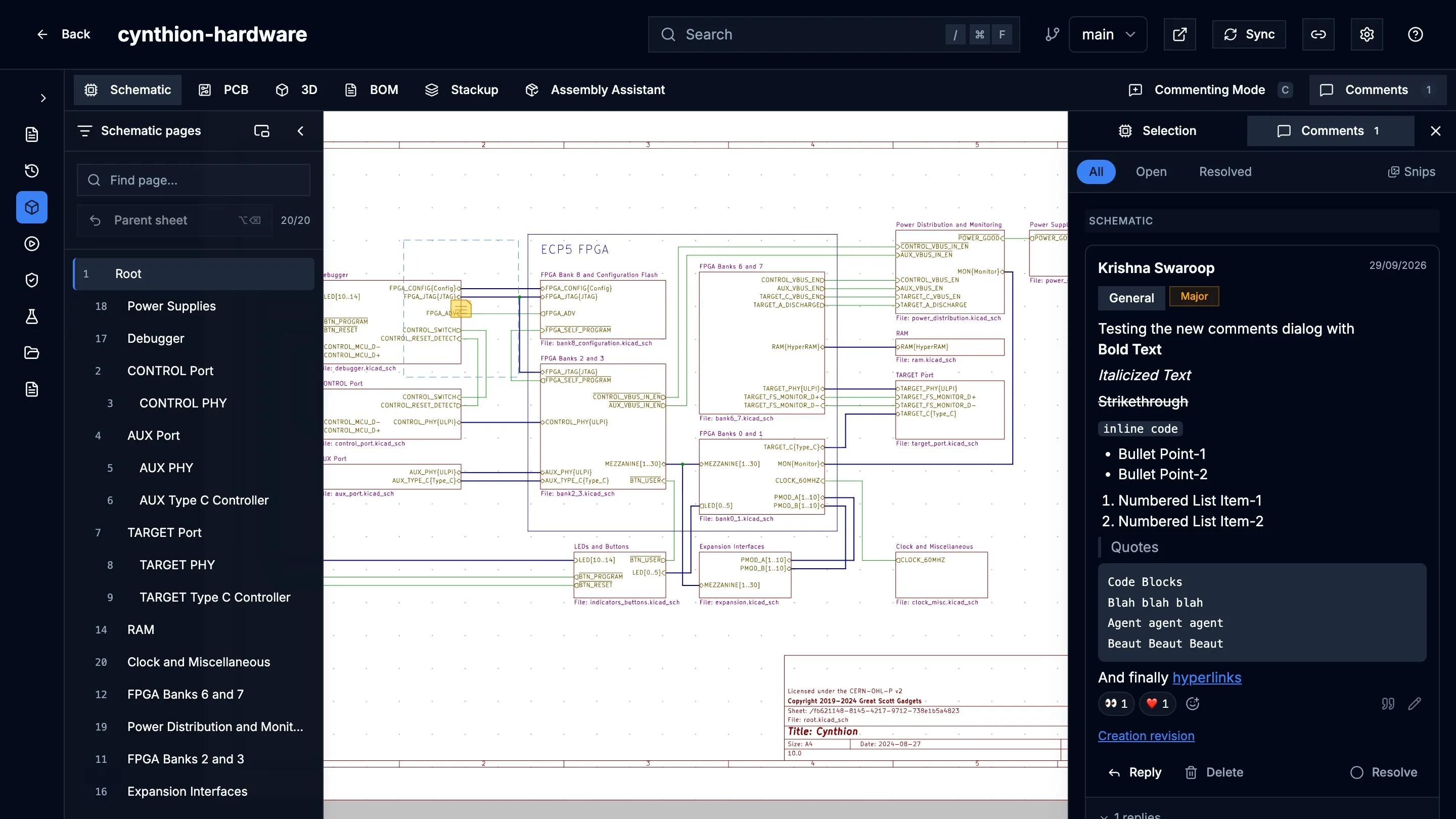
Section titled “Format and attach”The comment box is a rich-text editor. Its toolbar has bold, italic, strikethrough, inline code, bulleted and numbered lists, quotes, code blocks and links.
- Snips. Paste a screenshot with
⌘V(Ctrl+V), drop a file on the box, or use the paperclip (Attach files). - File types. PNG, JPEG, WebP and GIF images, PDF, ZIP, and text files
(
.txt,.csv,.md,.log). - Size. Up to 10 MB per file by default, and 2 GB per project in total. Your administrator sets both limits; see Configuration.
Images show inline in the thread; other files show as downloads. Attachments are stored by Prism, not in the repository, and only members of the project can open them.
Mention someone
Section titled “Mention someone”Type @ followed by an email address to mention a person. Prism records the
mention but does not send an email or an in-app notification. When the thread
is published as an issue and that person has linked their GitHub or GitLab
account, the mention becomes a mention on the issue.
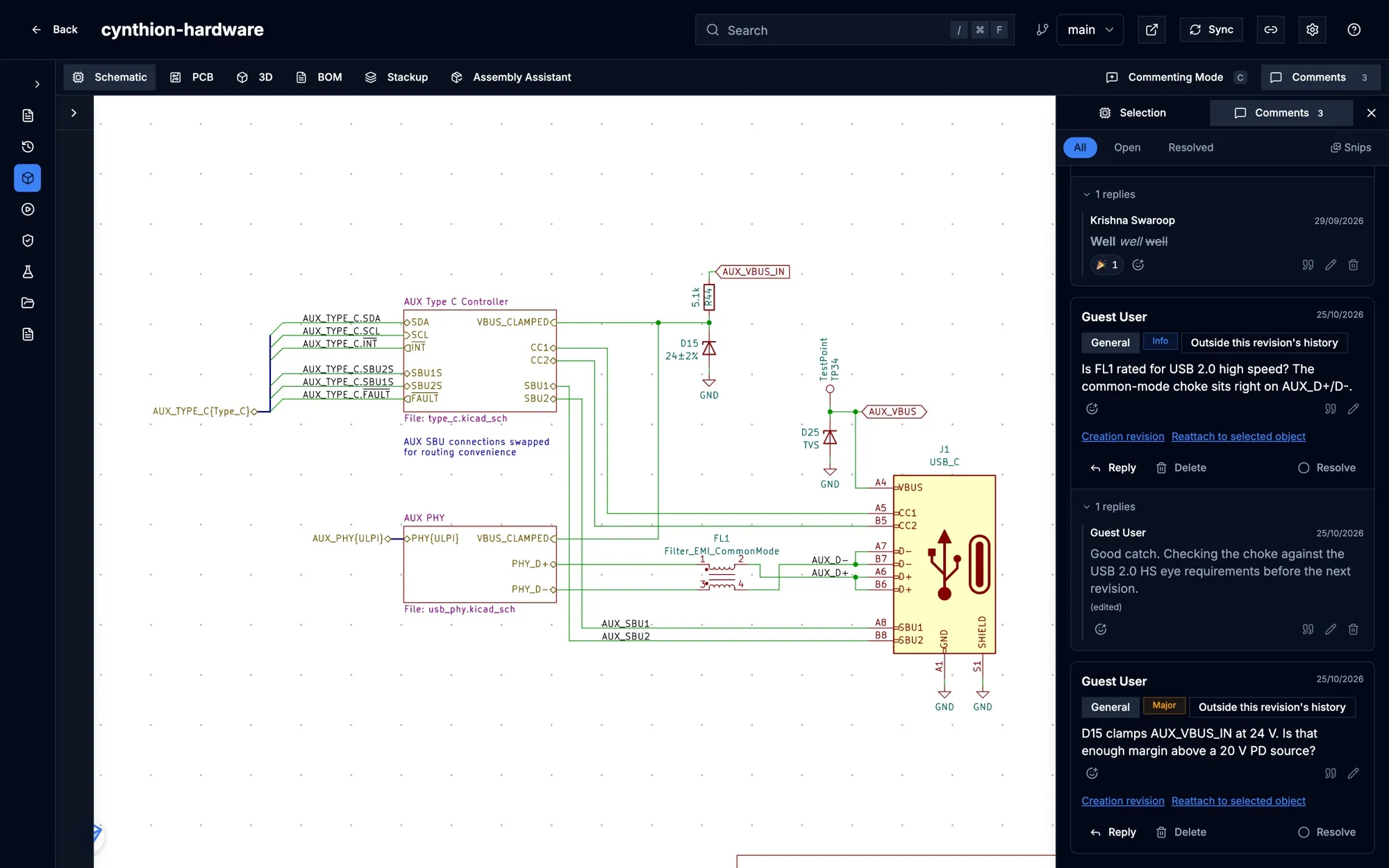
Read and answer threads
Section titled “Read and answer threads”Select Comments in the toolbar to open the comments panel.
- All, Open and Resolved filter the threads. Threads are grouped under Schematic and PCB Layout.
- A dot marks a thread with activity since you last opened it. This is kept per browser.
- Snips shows every pasted image in the review as one gallery. Click an image to open its thread.
- Click a thread to jump to its place in the design.
In a thread:
- Reply opens the reply box.
- The smiley icon adds a reaction.
- The quote icon (Quote in reply) quotes the message into your reply.
- The pencil (Edit message) edits your own message. An edited message shows (edited).
- Resolve closes the thread; Resolved reopens it.
- Delete removes the thread and its replies. This cannot be undone.
Comments update live for everyone who has the project open. If the connection drops, the panel says Live comments reconnecting; updates may be delayed. and keeps refreshing in the background until it reconnects.
When the design has moved on
Section titled “When the design has moved on”A comment remembers the commit it was written on and the object it points at. When you view a later revision:
- If the object still exists, the marker follows it, even if it moved.
- If the object is gone, the thread stays in the panel with Object is missing on this revision instead of pointing at the wrong place.
- An area comment, which is not tied to an object, shows Area needs review on this revision.
- Other notes you may see are Outside this revision’s history, when you view a branch that does not contain the comment’s commit, Two branch attachments conflict after a merge, and Not pinned to a commit, for comments from before Prism recorded the commit.
Each thread has a Creation revision link that opens the design as it was when the comment was written. To point a thread at the right object on the current revision, select the object and then Reattach to selected object. Reattaching applies from that commit onwards; the thread’s original position is kept.
Publish a thread as an issue
Section titled “Publish a thread as an issue”If your administrator has connected GitHub or GitLab, a project can publish comment threads as issues in a repository. The project’s rules are under the link icon (Issue publishing settings) in the project header: which repository, which severities publish automatically (for example Minor and above), whether tasks always publish, and Who can publish.
To publish a thread yourself, select Create … issue on the thread (the button names the tracker). Once linked, the thread shows Open … issue and the issue’s sync state.
- Replies, edits and resolving are mirrored to the issue, and replies made on the issue appear in the thread marked on github or on gitlab.
- A reply from someone who may not publish stays in Prism, marked Not shared to the … issue. Someone with publishing rights can select Share to … on it.
- If syncing fails, the thread shows the error and Retry sync.
- The discussion in Prism stays available when the tracker is down.
- Comments from before Prism recorded the commit cannot be published until they are reattached.
Attachments travel with the published thread. Linking your own GitHub or GitLab account, under Settings → Connected accounts, lets issues credit you by your handle.
Connecting a tracker is an administrator task; see Issue trackers.
Comments on a comparison
Section titled “Comments on a comparison”Design Comparison has its own discussion panel, tied to the two revisions being compared. See Compare two revisions.
Export comments
Section titled “Export comments”Prism can write the project’s comments to a .comments/ folder
(comments.json, the attachments, and one Markdown file per thread) through
the API; there is no button for this in the browser. Prism does not commit or
push the export. A repository imported with such a folder brings its comments
and attachments with it. See
API and tokens.
Prism has no approved or changes-requested state for a project. Record the final review decision in your pull request or change-management system.