
Design data
Prism reads each revision of a project once, in the background, and keeps the result as that revision’s design data. The project card, the viewers, the 3D tab, the BOM, variants, Design Comparison, library imports and Release Studio all use it. This page explains the messages you see while it is built and how to rebuild it.
Design data is prepared ahead
Section titled “Design data is prepared ahead”After an import or a sync, Prism prepares design data for the newest commits of each branch and for every tagged commit, before anyone opens them. A commit that leaves the design files unchanged reuses the previous commit’s design data instead of being read again.
Older commits are prepared the first time someone opens them.
“Preparing design data…”
Section titled ““Preparing design data…””A view that opens a revision without design data shows Preparing design data… while it is built, then fills in by itself.
- A large board can take a few minutes the first time, most of it spent by KiCad refilling the copper zones. Later opens are immediate.
- The 3D tab fills in stages: the bare board can appear before its parts.
- If the view stops waiting, it offers Check again.
You don’t need to stay on the page; the build continues on the server.
“Design data could not be built”
Section titled ““Design data could not be built””When reading a revision fails, the view shows Design data could not be built with the error from KiCad or Prism, and a Retry button.
- Read the error. It usually names the file and the problem.
- If the cause was temporary, select Retry.
- If KiCad cannot read a file, fix it in the repository, push, and sync the project. The failed revision stays failed until it is fixed or retried.
Without a retry, Prism tries a failed revision again the first time it is opened after an hour. Your administrator can change that interval; see Configuration.
“Local changes are not shown”
Section titled ““Local changes are not shown””Design data is always built from a commit. If Prism’s own copy of the repository has uncommitted changes, the view notes Local changes are not shown: what you see is the last commit, not the changed files.
Check a project’s design data
Section titled “Check a project’s design data”- Open the project.
- Select the gear icon (Project settings) in the project header.
- Scroll to Design data.
The summary line counts the revisions that are stored, reused from another commit, building, failed or incomplete. Below it, Prism lists the most recent revisions with a failed or partial stage, and the most recent failed builds, each with its commit and the reason. Hover a reason to read it in full.
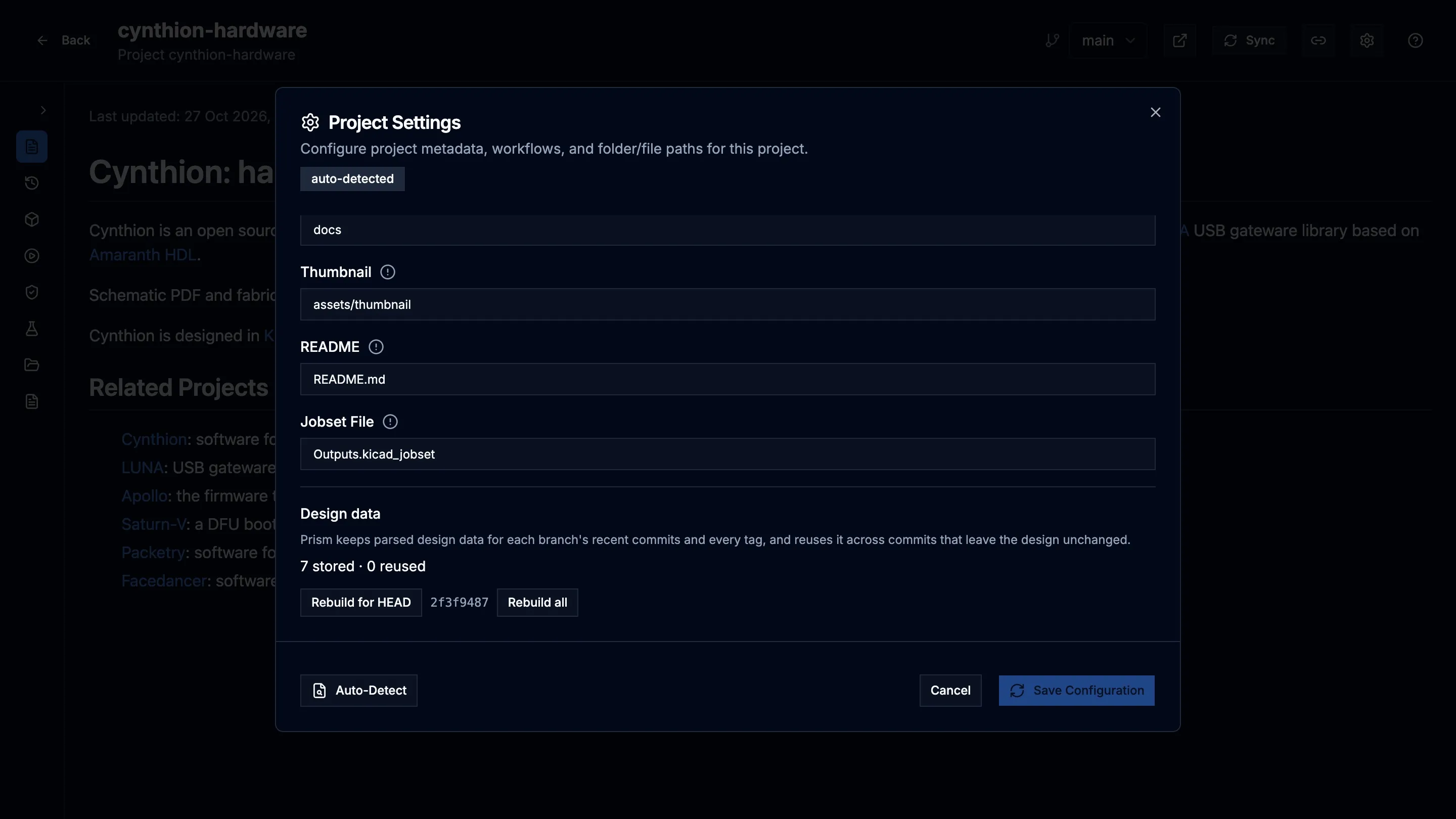
Project Settings is available to designers and admins.
Rebuild design data
Section titled “Rebuild design data”In Design data:
- Rebuild for HEAD drops and rebuilds the design data of the commit Prism has checked out. Its short hash is shown next to the button.
- Rebuild all drops every revision’s design data for the project and rebuilds it from scratch. Confirm with Rebuild all in the dialog. Until the rebuilds finish, views can be slower or show Preparing design data….
A rebuild cannot start while another build of the project is running; Prism says so and you can try again when it finishes.
Rebuild when a revision looks wrong and a retry did not help.