
Manage components in Library Manager
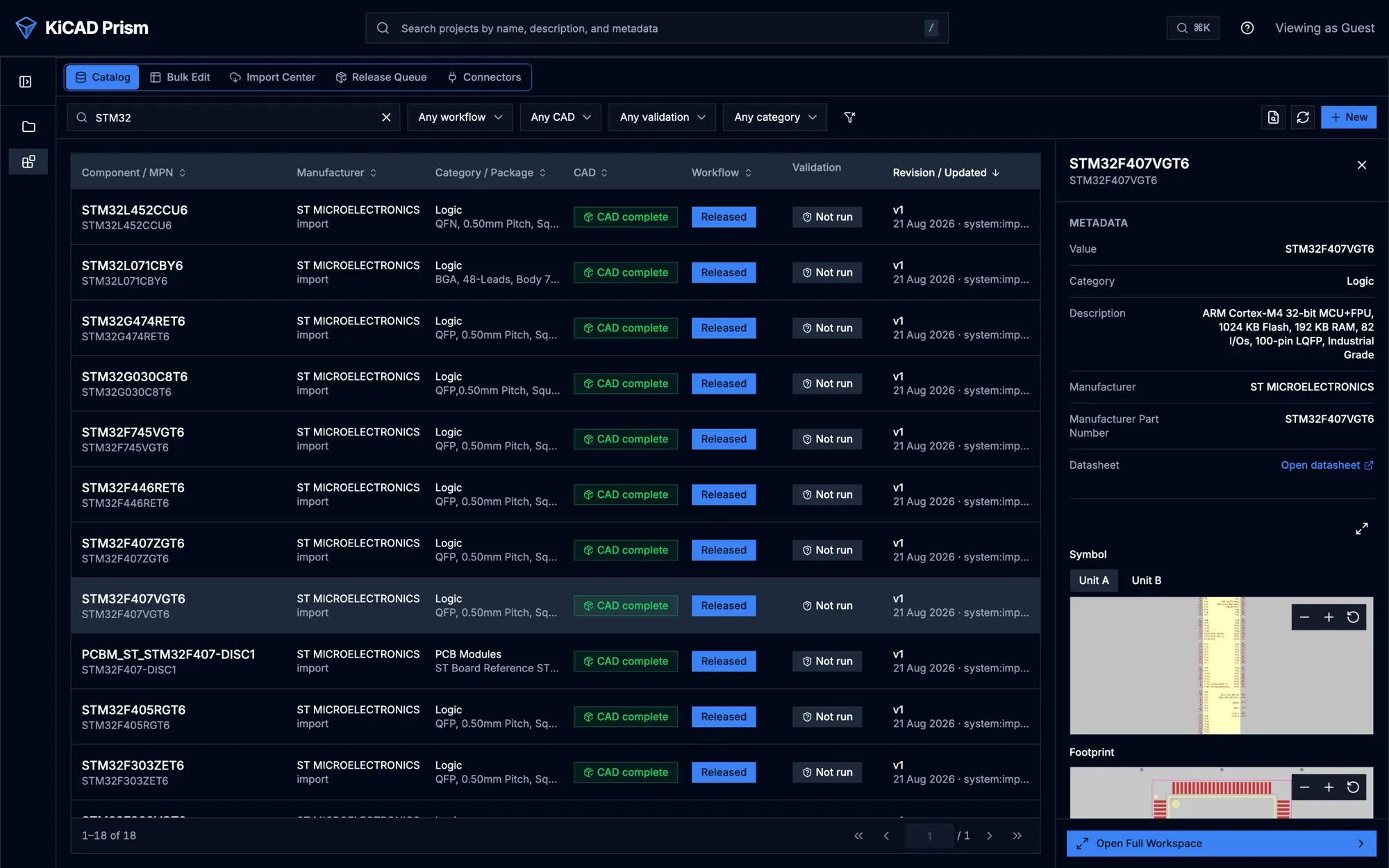
Library Manager is your team’s shared component library. You create or import a component, attach its symbol, footprint and models, send it through QA review, and release it. Released components can then be placed in desktop KiCad through the Remote Symbol Provider.
Open it from Library Manager in the left sidebar.
Who can do what
Section titled “Who can do what”| Role | In Library Manager |
|---|---|
| Viewer | Browse the catalog, component details, previews, the metadata grid and the release queue. No changes. |
| Designer | Create, import and edit components, send them to QA review, and release them after QA approves. |
| QA | Approve components in QA review, or send them back with a note. |
| Admin | Everything above, plus overriding the two-person rule with a written justification. |
The Import Center and validation runs are not available to viewers.
The sections
Section titled “The sections”The tabs along the top are:
- Catalog: search and filter every component, and open one.
- Bulk Edit: edit metadata for many components in a spreadsheet.
- Import Center: bring components in from KiCad libraries or projects.
- Release Queue: components waiting for QA or ready to release.
- Connectors: not available yet.
How a component moves to release
Section titled “How a component moves to release”Each component has a revision that moves through these stages:
| Stage | Meaning |
|---|---|
| Open | A new draft. |
| In progress | Being authored. |
| QA review | Waiting for a QA reviewer. |
| Approved | QA approved this exact revision. |
| Released | Available to place in KiCad. |
| Archived | Withdrawn. |
A QA reviewer who sends a component back moves it to In progress and must leave a note saying what to change. A released revision never changes: to change a released component, move it back to Open, which starts a new draft revision. The released revision stays available until the new one is released.
Create a component
Section titled “Create a component”- In Catalog, select New.
- Fill in Value, Manufacturer, Manufacturer part number, Description, Datasheet URL and Change summary. Category and Package are optional.
- Select Create revision.
- Open the component and go to Assets. Attach a symbol and a footprint, and optionally 3D models and SPICE models.
- Under Representations, check that the symbol is paired with the right footprint. Add another pairing if the part comes in more than one variant.
Import components
Section titled “Import components”Open Import Center. It offers three sources:
- Scan reads the components used in the selected Project. All projects scans every project.
- Local folder uploads KiCad libraries from a folder on your computer.
- Server folder reads KiCad libraries from a folder on the Prism server. Pick a Server root and, optionally, a Subfolder. This only appears when your administrator has set up server roots (Configuration).
Each scan creates an import session in the Sessions list. Then:
- Select the session and review its candidates and Findings.
- For a library import, use Review discovered components to choose which components to capture. Only the selected components’ files are captured.
- For each candidate, select Accept to open the review form, fix any missing metadata or footprint mapping, and accept it as a draft revision. Select Reject to drop it.
A candidate can be accepted only when:
- it has a value, manufacturer, manufacturer part number, description, and a
datasheet link starting with
http://orhttps://; - it has one symbol and one footprint, either imported or linked to an existing library asset;
- no other blocking finding remains.
A manufacturer part number that belongs to a retired component cannot be imported again. Discovery marks those parts Retired.
Symbols and footprints from a project are not approved library assets just because a project uses them. Review each one before you accept it.
When you no longer need a finished session, delete it from its row. Its open candidates and staged files go; components you already accepted stay.
Edit components
Section titled “Edit components”- One component: open it and select Edit metadata. Only required fields are checked, so old values you did not touch never block a save.
- Many components: in Bulk Edit, change cells, then select Review, enter a Required change summary, and apply. Each edited component gets a new metadata revision in QA review. Bulk Edit also checks that numbers, URLs, yes/no values and list options are valid. You can import and export the grid as CSV.
Provisional parts (no manufacturer part number yet) can be drafted, but cannot be approved, released or placed until you add a real part number.
If someone else changed the component while you were editing, Prism reports a conflict instead of overwriting their work. Reload the component and try again.
Inspect symbols and footprints
Section titled “Inspect symbols and footprints”The catalog’s quick view and the component’s Assets tab render the symbol and footprint directly. Choose a representation to see its symbol and footprint together. Select a pin in the symbol or a pad in the footprint to highlight the matching item in the other. Pan and zoom inside the preview.
A preview is for inspection only. It is not approval evidence.
The other tabs are Revisions / Compare (earlier revisions and what changed), Release Review (workflow and evidence), Where Used (projects that use the part) and Audit.
Review and release
Section titled “Review and release”QA reviewers work from Release Queue, which lists components that are Awaiting QA or Ready to release. Filter by stage, then open a component.
- Open the component’s Release Review tab.
- Check the evidence: required CAD assets, KLC validation, visual evidence, sourcing identity and the revision manifest.
- Select Move to Approved, or Request changes to send it back.
- Write a review note. A note is required for both approving and requesting changes from QA review.
- Select Confirm decision.
After QA approves, the designer selects Move to Released on the same tab.
Release is refused unless:
- the revision has one complete default representation (a symbol and a footprint);
- a QA approval exists for this exact revision;
- the person who approved did not author the revision;
- the part has a real manufacturer part number;
- KLC validation passes, when your administrator has made KLC a release blocker.
An admin who authored a revision can approve it themselves only by writing an Override justification. It is recorded as an emergency override in the audit trail.
KLC validation
Section titled “KLC validation”When your administrator has turned on KiCad Library Convention (KLC) checks, Prism checks each symbol and footprint and shows the result in the catalog’s validation column and on the Release Review tab. Depending on the server setting, failures are ignored, shown as warnings, or block release. Prism reports problems but never changes your files to fix them.
The settings are described in Configuration.
What KiCad users can place
Section titled “What KiCad users can place”A component appears in KiCad’s Remote Symbols panel only when it is released, not archived, and its released revision has a complete default symbol and footprint. Drafts, components in review, archived components and incomplete components do not appear.
Export a KiCad database library
Section titled “Export a KiCad database library”For teams that use KiCad database libraries instead of the Remote Symbol
Provider, Prism can export released components as a KiCad DBL bundle: an
SQLite database, the .kicad_dbl file, and the symbol, footprint and 3D model
libraries. A designer or admin runs the export through the API
(POST /api/catalog/exports/kicad-dbl); there is no button for it in Library
Manager. See API and tokens.
What to know about the bundle:
- It is written to a directory on the server (Configuration). Copy the whole directory to users, not only the database file.
- It contains only each component’s default representation. To pick another representation, use the Remote Symbol Provider.
- Symbols and footprints are the latest released revision. KiCad’s Update Symbols from Library moves a design to the newest release, as with any library.
- 3D models of every released revision are kept, so a board placed from an earlier release keeps its model.
- Each part’s key is its manufacturer part number (or its value when it has
none), with colons and spaces replaced by
_. Parts that would share a key get a suffix from their component ID. Existing keys never change when you add parts. - A failed export leaves the previous bundle in place.
Do not edit stored files
Section titled “Do not edit stored files”Don’t change files inside the .kicad-prism folder on the server by hand.
Prism records a hash of every stored file, and an edited file breaks previews,
audit evidence and placement.