
Release a board with Release Studio
Release Studio turns one revision of a KiCad project into a set of manufacturing documents, gets a designer and a QA reviewer to sign it off, and publishes it as a GitHub or GitLab Release with the files attached.
The release tag is the drawing revision. You choose it before the build, so every PDF carries it.
Before you start
Section titled “Before you start”- Roles. A designer or admin starts a release. A designer, QA reviewer or admin signs off and publishes. A viewer can open Release Studio and inspect past runs.
- Forge token. Publishing needs a GitHub or GitLab token on the server with permission to create releases. Prism’s SSH key can clone the repository but cannot create a release. If the token is missing, the Publish stage says which one to set; ask your administrator to set it as described in Configuration.
- Remote. The project must be imported from a GitHub or GitLab remote. Prism does not publish releases to other forges.
Start a release
Section titled “Start a release”- Open the project and choose Release Studio in the project navigation.
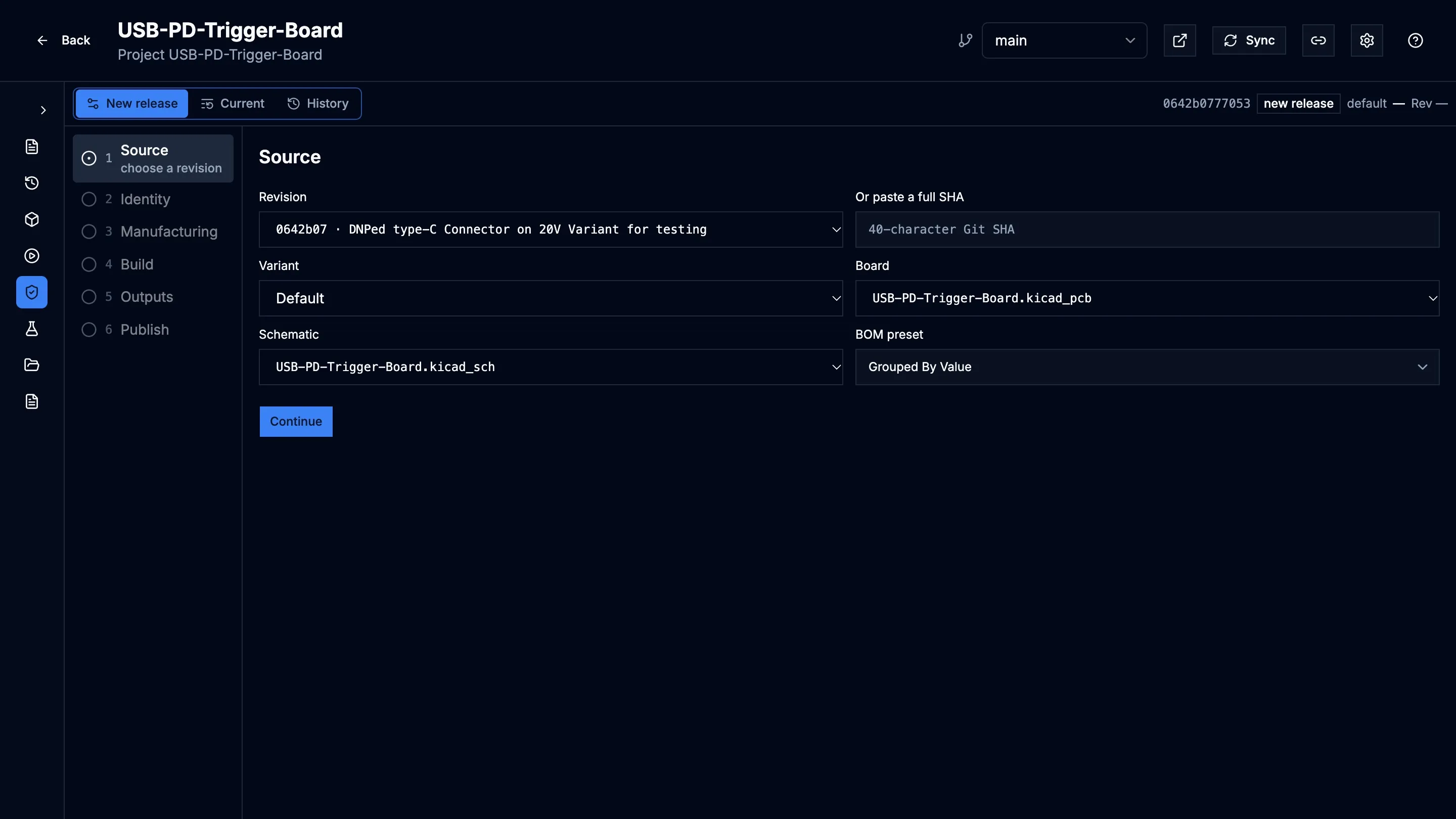
- Choose New release. Release Studio opens on the Source stage.
Source
Section titled “Source”- In Revision, pick the commit to release. The list starts at the tip of the tracked branch. For an older commit, paste its full 40-character SHA into Or paste a full SHA.
- Check Board and Schematic. Prism lists the
.kicad_pcband.kicad_schfiles it finds in the project at that commit. - Choose a Variant. Default is the design without any variant applied. The other entries are the design variants Prism found at that commit (see Variants and BOM).
- Choose a BOM preset. The list holds the BOM presets saved in the schematic, Current project settings, and KiCad’s built-in presets (Grouped By Value, Grouped By Value and Footprint, Attributes).
- Select Continue.
Prism remembers your board, schematic, variant and BOM preset for the project’s next release, and reuses each one if it still exists at the commit you pick. A remembered variant that the new commit no longer has falls back to Default.
Identity
Section titled “Identity”- Enter the Tag, for example
v1.0.0. It is printed as the drawing revision and becomes the name of the GitHub or GitLab Release. Start it with a letter or digit and use only letters, digits, dots, underscores and hyphens. - Enter the Document Name. It is printed as DOCUMENT in the cover title block.
- Pick the Date printed on the cover.
- Optionally, add Release notes.
- Select Continue.
Prism checks whether the tag already exists on GitHub or GitLab. If it does, you cannot continue: tags are never overwritten. If Prism cannot reach the forge, you can continue, and a clash stops the release at Publish instead.
Manufacturing
Section titled “Manufacturing”Every field on this stage is optional. What you enter is printed on the cover and kept with this build only; it is not committed to the repository and is not remembered for the next release.
- Choose the Manufacturing IPC class (IPC-6012 or IPC-6013, Class 1 to 3) and the Assembly IPC class (IPC-A-610 or J-STD-001, Class 1 to 3).
- Choose the Solder mask colour, Silkscreen colour and Via treatment. Choose Other in any of these lists to type your own value.
- Under Manufacturer packs, select each manufacturer you want an upload
pack for, such as
jlcpcb. - Optionally, attach a Layer stackup PDF from your fabricator. It must be under 14 MB, and it is appended unchanged to the fabrication drawing.
- Optionally, attach a Controlled impedance CSV. Select Download blank CSV template to get the columns (see Controlled impedance CSV).
- Select Continue to start the build.
After the build starts, Identity and Manufacturing are read-only for that run. To change them, start a new release.
Watch the build
Section titled “Watch the build”The Build stage shows the build’s progress, each pipeline step with its duration, and the live output of the worker while it runs. Select a step to read its log.
To stop a build, select Cancel build. The run is kept with a cancelled status.
A failed or cancelled run is kept in the history and cannot be published. Fix the cause and start a new release; a new run never changes an earlier one. When you reopen a finished run, the live output is not replayed, but the recorded failure and the per-step logs are still there.
Library table entries that point at a path on the server, and missing
.pretty libraries, are reported as warnings. They do not fail the build.
Inspect the outputs
Section titled “Inspect the outputs”When the build succeeds, open Outputs. The tabs show:
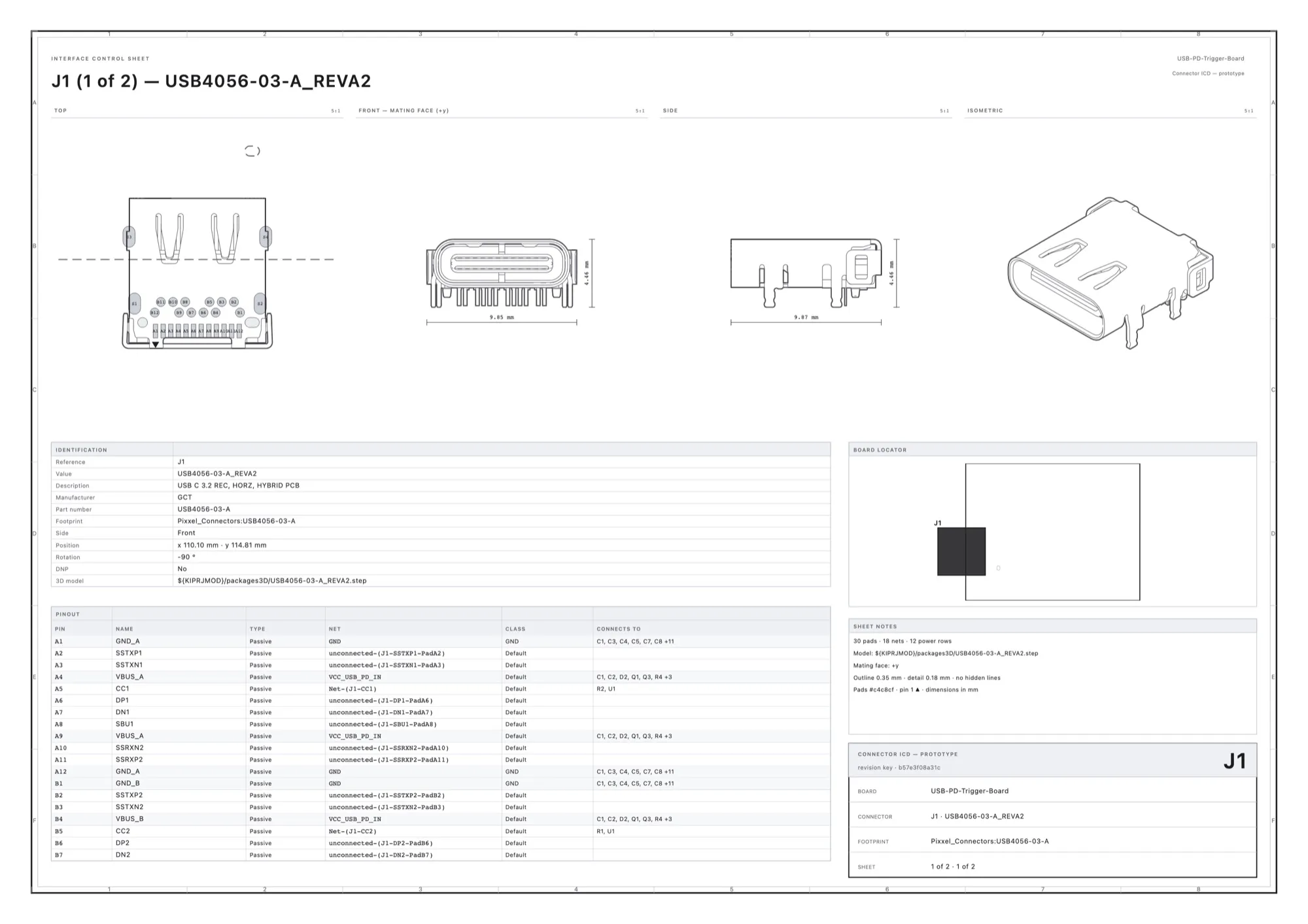
- Documents: the drawing set as PDFs (cover, fabrication, assembly, testpoint, drill, schematic and BOM). Select a drawing to preview it, and download it from its toolbar.
- Gerber: the fabrication files in a board viewer, with layer, drill and placement views.
- Members: every file in the release, grouped by kind. A Gerber or drill file opens in the board viewer; select Text to read it as text instead.
- Evidence: DRC and ERC reports and the build’s warnings.
Select Dossier to download the whole release as an archive, or Build evidence to download the reports, logs and timings.
The Release checks panel on the right has three parts:
- Checks: the DRC and ERC error and warning counts, and any 3D models the build could not pin.
- Approvals: the Designer and QA sign-off.
- Manufacturer: the state of each selected manufacturer pack, with a
download for each ready pack. A pack is ready only when every file it
promises exists; for JLCPCB that is the Gerbers, the drill files,
bom.csv,cpl.csv,bom.xlsxandcpl.xlsx.
Sign off a release
Section titled “Sign off a release”A release needs two approvals, one in each slot, both on this exact build. A new build of the same commit starts with no approvals.
- Designer: the person who started the build. An admin can fill the slot for them with a written note.
- QA: a QA reviewer or admin who is not the person in the Designer slot. An admin can fill both slots with a written note.
To approve:
- Open Outputs and find your slot under Approvals.
- Optionally, type a Note.
- Select Approve.
Unwaived DRC or ERC errors block approval. KiCad waivers (exclusions) committed with the design count as cleared. Only an admin can approve over remaining errors, and must type an Override note. Warnings never block.
If the build lists unpinned 3D models (a model file on the server that could
not be read, or a missing .wrl that KiCad would replace with a STEP model),
tick the box acknowledging them before you approve. The acknowledgement is
recorded with your approval. It does not block the release.
To take an approval back before the release is published, type a Withdrawal note and select Withdraw. The person who approved, or an admin, can withdraw.
Publish the release
Section titled “Publish the release”- When both slots are approved and every selected manufacturer pack is ready, select Continue in Release checks to open Publish.
- Check the Tag, Document Name, Date and Notes. You cannot edit them here.
- If the build lists unpinned 3D models, tick the acknowledgement again.
- Press and hold Hold to publish to GitHub (or GitLab) until it completes.
Prism creates a Release named after the tag on the build’s commit, and
attaches the release as <project>-<tag>.zip plus each selected manufacturer
pack. The Publish stage then links to the Release.
If someone deletes the Release on GitHub or GitLab later, Release Studio shows the release as missing there. Prism keeps its own record of the publish and does not recreate the Release.
Find an earlier run
Section titled “Find an earlier run”- Current shows the newest run.
- History lists every run with its status. Select one to open its stages. Use the panel button to hide or show the run list.
The strip at the top of a run shows its commit, status, variant, document name and revision.
What a release contains
Section titled “What a release contains”Documents
Section titled “Documents”| Drawing | Contents |
|---|---|
| Cover | Title block (DOCUMENT, REVISION, DATE, COMMIT, VARIANT), revision history, board characteristics, and the manufacturing and assembly specification from the IPC fields |
| Fabrication | Layer plots, then the impedance table if you uploaded a CSV, then your stackup PDF unchanged |
| Assembly | Assembly views of the board |
| Testpoint | Test point views |
| Drill | Drill drawing, with via types, counts and spans taken from the board |
| Schematic | The schematic |
| BOM | The BOM from your chosen preset, as a CSV and a typeset PDF |
The cover’s revision history lists this release first, then the earlier GitHub or GitLab Releases of the repository. If Prism cannot reach the forge, it shows only this release.
The JLCPCB pack keeps its own BOM in JLCPCB’s format, separate from the release BOM.
Archives
Section titled “Archives”- The dossier holds the released files: Gerbers and drill files, BOM and
component placement files, the document PDFs, and a
manifest.jsonthat lists every file with its digest. Building the same commit with the same inputs again produces the same files, byte for byte. - The build evidence holds what is not part of the release itself: DRC and ERC reports, per-step logs, timings and board facts.
- The published zip is the dossier’s files in a zip.
Controlled impedance CSV
Section titled “Controlled impedance CSV”The template has these columns:
| Column | Meaning |
|---|---|
Type |
SE (single-ended) or DIFF (differential) |
Name |
Net or pair name |
Layer pair |
For example F.Cu-In1.Cu |
Target Z (Ω) |
Target impedance |
Tolerance (Ω) |
Allowed deviation |
Width (mm) |
Trace width |
Spacing (mm) |
Pair spacing, for DIFF rows |
Notes |
Free text |
Prism ignores columns it does not know.
Project settings
Section titled “Project settings”Release Studio reads no settings from the project’s .prism.json. In
particular, the jobset path there is not used: Release Studio runs its own
fixed set of KiCad exports rather than a .kicad_jobset.
The only per-project state is the remembered Source choice described above,
which Prism stores itself. Release configuration files committed under
.prism/release-studio/configurations/ by older versions of Prism are not
read when you start a release from the browser.
The drawing style is fixed: Prism’s sheet style and typeface, with line weights measured at paper scale. You cannot change it per project.